
Dedicated terminal link
Give each counter or sales desk its own named page.
Open a dedicated terminal link, enter the sale total and continue to the customer’s crypto checkout.
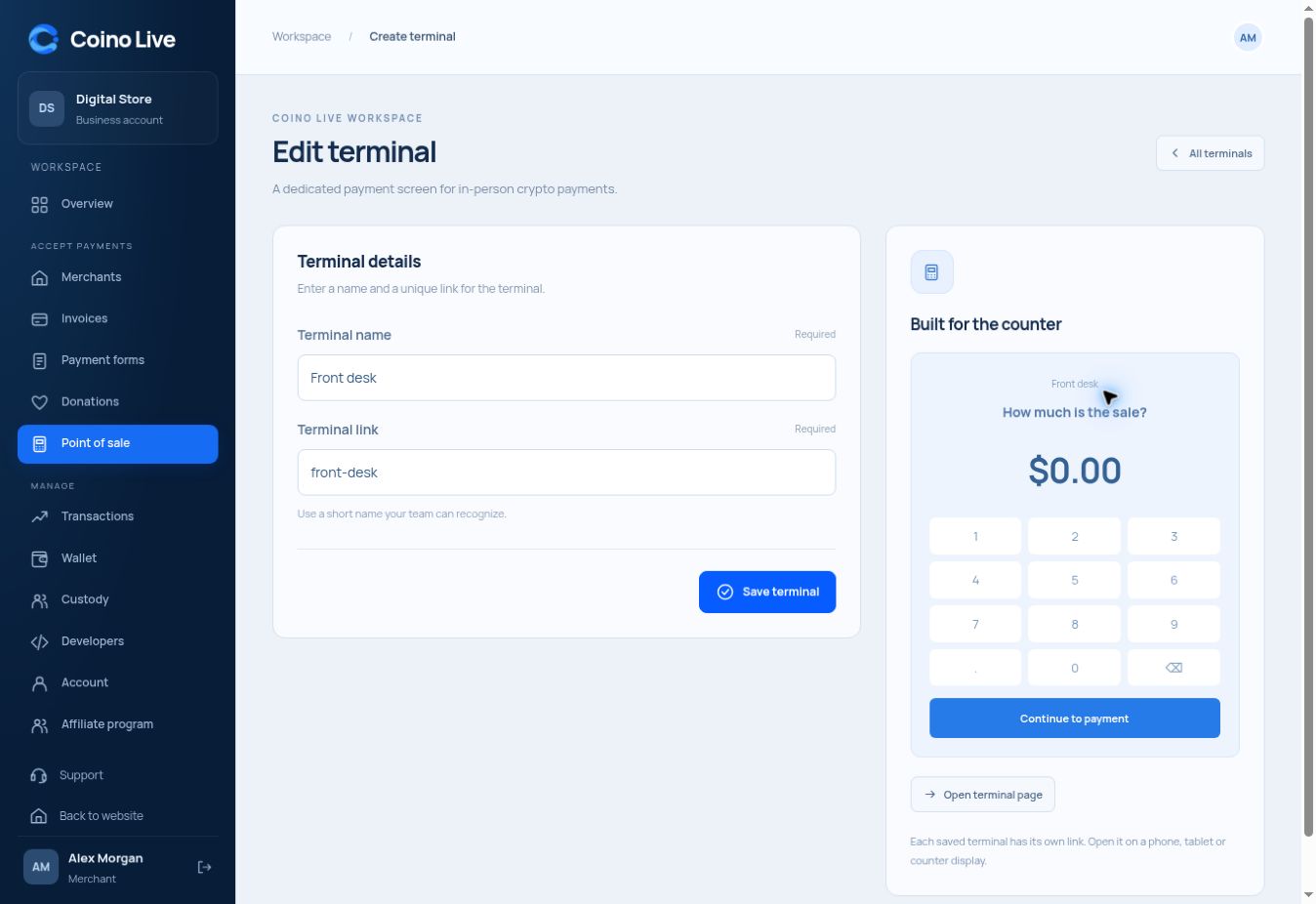
Give each counter or sales desk its own named page.
Use a numeric keypad, direct input or quick amounts.
Move the sale total into the currency and network selection flow.
For retail counters and service desks, the terminal keeps the starting task focused: enter an amount. A dedicated page can be opened on a phone, tablet or counter display.
Give it a title and recognizable link.
Set the total for the current sale in USD.
The customer chooses their currency and network.
Create the terminal with a title and unique slug, then open or copy its page link.
You can also type directly in the amount field or use quick amounts.
Currency and network selection happens in the checkout after the sale amount is entered.
Choose the service that fits the way you work.