

Accepting international payments can be difficult for hosting companies, domain registrars, SaaS providers, and other online businesses.
Traditional payment methods may not be available in every country. They can also involve chargebacks, settlement delays, regional restrictions, and additional payment-processing requirements.
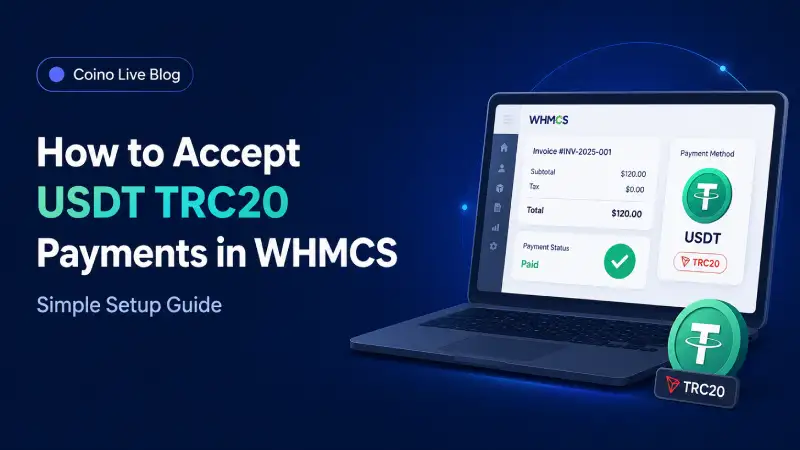
Adding a USDT TRC20 payment gateway to WHMCS gives customers another way to pay their invoices. Instead of entering card information or making a bank transfer, customers can pay using Tether from a compatible cryptocurrency wallet.
In this guide, you will learn how to install the Coino Live payment gateway module, connect it to WHMCS, test the checkout process, and troubleshoot common payment problems.
What Is a WHMCS USDT TRC20 Payment Gateway?
A WHMCS USDT TRC20 payment gateway connects your WHMCS billing system to a cryptocurrency payment processor.
When a customer selects cryptocurrency at checkout, the gateway creates a payment order and sends the customer to a payment page. The customer then selects an available cryptocurrency or network, completes the transaction, and returns to your website.
The payment gateway’s callback system communicates the payment result to WHMCS. When the transaction is successfully verified, WHMCS can record the transaction and apply the payment to the related invoice.
WHMCS recommends that callback files validate payment notifications, check the invoice ID, prevent duplicate transaction records, log the transaction, and apply the payment to the invoice.
Why Accept USDT TRC20 in WHMCS?
USDT is a stablecoin designed to maintain a value close to the US dollar. This can make it easier for customers to understand the amount they need to pay compared with cryptocurrencies that experience larger price movements.
The TRC20 version of USDT operates on the Tron network. Many cryptocurrency users choose this network when transferring USDT between supported wallets and services.
For a WHMCS business, accepting USDT can provide several practical benefits.
Reach Customers in More Countries
Customers who cannot use your existing credit card or bank payment methods may still have access to cryptocurrency.
This is particularly useful for businesses selling digital services internationally, including:
- Web hosting
- VPS and dedicated servers
- Domain registration
- Software licences
- VPN subscriptions
- SaaS products
- Digital services
- Reseller hosting
Reduce Chargeback Exposure
Confirmed cryptocurrency payments cannot normally be reversed through the same chargeback process used by credit card networks.
However, merchants should still maintain a clear refund policy and verify every transaction before provisioning expensive or sensitive services.

Receive Payments at Any Time
Cryptocurrency networks can operate outside traditional banking hours. Customers can initiate payments during weekends and holidays without waiting for a bank branch to open.
Transaction confirmation time still depends on the selected network, wallet, transaction fee, and network conditions.
Offer an Additional Checkout Option
You do not have to replace your current payment methods. Cryptocurrency can be offered alongside cards, bank transfers, PayPal, or other gateways.
This lets customers choose the payment method that is most convenient for them.
Why Use Coino Live with WHMCS?
Coino Live provides a downloadable WHMCS payment gateway module and supports more than 241 cryptocurrencies. Its supported-assets directory includes Tether and separates assets by networks such as TRC20, ERC20, BEP20, Polygon, and TON.
The integration uses a Coino Live API Key and Gate ID to connect your WHMCS installation to your merchant account. Coino Live’s official installation instructions place the gateway and callback files inside the standard WHMCS gateway directories.
Using a ready-made module means you do not have to build the entire payment and callback workflow from the beginning.
What You Need Before Installation
Before setting up the gateway, make sure you have:
- An active WHMCS installation
- Administrator access to WHMCS
- File Manager, FTP, SFTP, or SSH access to your server
- A Coino Live account
- A configured Coino Live merchant profile
- Your Coino Live API Key
- Your Coino Live Gate ID
- An SSL certificate installed on your WHMCS website
- A backup of your website files and database
You should also confirm that your hosting environment meets the requirements of your installed WHMCS version.
Step 1: Create a Coino Live Account
Start by creating a Coino Live account.
After signing in, complete the required business and merchant information. Depending on your account and business type, additional verification may be required before all payment features become available.
Once your merchant profile is ready, configure your preferred payment and settlement settings.
Coino Live’s documentation states that merchants can create API credentials from their account and add payout details based on their preferred settlement method.
Suggested internal link: Create a Coino Live account
Step 2: Create or Select a Merchant Gateway
Open the merchant section of your Coino Live dashboard.
Create a new gateway for your WHMCS website or select an existing gateway that you want to use.
Copy the following credentials:
- API Key
- Gate ID
Keep these credentials private. Anyone with access to sensitive API credentials may be able to interact with your payment integration.
Do not publish the API Key in screenshots, support tickets, public repositories, or frontend JavaScript.
Step 3: Download the Coino Live WHMCS Module
Download the latest Coino Live WHMCS payment gateway module from the official WHMCS integration page.
Extract the downloaded archive on your computer.
Before uploading anything, inspect the extracted folders and confirm that the package contains the gateway module and its callback file.
The official installation instructions identify these two file locations:
modules/gateways/coinolive.php
modules/gateways/callback/coinolive.php
The package may also include a coinolive directory that must be placed inside the main modules/gateways directory.
Suggested internal link: Download the Coino Live WHMCS plugin
Step 4: Upload the Module to WHMCS
Connect to your server using SFTP, SSH, your hosting control panel, or another secure file-management method.
Open your WHMCS root directory. This is the directory containing your WHMCS files and folders.
Upload the module files so that the final structure matches the following:
your-whmcs-directory/
└── modules/
    └── gateways/
        ├── coinolive.php
        ├── coinolive/
        └── callback/
            └── coinolive.php
Do not upload the entire extracted parent directory if doing so creates duplicated paths such as:
modules/gateways/modules/gateways/coinolive.php
WHMCS expects standard gateway modules to be uploaded to /modules/gateways/, while callback files belong in /modules/gateways/callback/.
After uploading the files, check that the web-server user has permission to read them.
Step 5: Activate Coino Live in WHMCS
The exact navigation depends on your WHMCS version.
Newer WHMCS Versions
In newer versions, go to:
Configuration → Apps & Integrations
Open the Payments category, find Coino Live, and click Activate.
Current WHMCS documentation directs administrators to activate payment gateways through Apps & Integrations and then configure the gateway settings.
Older WHMCS Versions
In some older WHMCS installations, the navigation may appear as:
Setup → Payments → Payment Gateways
Open the available gateways section, locate Coino Live, and activate the module.
If Coino Live does not appear in the gateway list, check:
- Whether
coinolive.phpis in the correct directory - Whether the filename was changed
- Whether all module files were uploaded
- Whether the file permissions are correct
- Whether your PHP version is compatible
- Whether the uploaded files are corrupted
Step 6: Configure the Gateway
After activating the module, open the Coino Live configuration form.
Enter the credentials you copied from your Coino Live merchant dashboard:
API Key: Your Coino Live API Key
Gate ID: Your Coino Live merchant Gate ID
Coino Live’s official WHMCS instructions require both the API Key and Gate ID during configuration.
Depending on the available module settings, you may also see options such as:
- Display name
- Show on order form
- Currency conversion
- Payment instructions
- Gateway visibility
For the display name, use something customers can understand immediately. For example:
Pay with Crypto
or:
Pay with USDT or Cryptocurrency
Avoid using a technical module name as the customer-facing label.
Click Save Changes when the configuration is complete.
Step 7: Display Crypto Payments at Checkout
Make sure Show on Order Form is enabled.
WHMCS uses this setting to determine whether a gateway appears on order forms and in the Client Area, subject to any product-group restrictions you have configured.
Next, review the payment gateway settings for each relevant product group.
For example, you may want cryptocurrency payments to be available for:
- Shared hosting
- VPS plans
- Dedicated servers
- Domain registrations
- Software products
You may decide not to enable cryptocurrency for specific products or services. Test each product group separately.
Step 8: Test the Complete Payment Process
Do not assume that the integration is working simply because the module appears in the WHMCS admin panel.
Create a small test order and complete the entire checkout process.
Your test should confirm that:
- The cryptocurrency payment option appears at checkout.
- WHMCS creates the invoice correctly.
- The customer can select the Coino Live payment method.
- The customer reaches the payment page.
- The invoice amount is displayed correctly.
- USDT and the required network are available.
- The payment address and amount are shown.
- The transaction is detected.
- The callback reaches your WHMCS installation.
- The WHMCS invoice changes to Paid after successful verification.
- The related service is provisioned according to your automation settings.
- The transaction appears in the WHMCS gateway log.
Use the smallest practical transaction amount supported by your configuration.
You should also test an unpaid or expired invoice to make sure that your system does not incorrectly activate services.
What Does the Customer Experience Look Like?
After the integration is enabled, the checkout process generally works like this:
- The customer selects a hosting plan or another service.
- WHMCS creates an invoice.
- The customer selects the cryptocurrency payment option.
- The customer continues to the payment page.
- The customer selects USDT and an available network.
- The customer sends the exact requested amount.
- The payment processor detects and verifies the transaction.
- The callback sends the payment result to WHMCS.
- WHMCS records the transaction and updates the invoice.
- WHMCS processes the related service according to your automation settings.
This process reduces the need to check wallets and manually mark individual invoices as paid.
Common WHMCS Crypto Payment Problems
Coino Live Does Not Appear in Payment Gateways
First, confirm that the module files are in the correct locations:
/modules/gateways/coinolive.php
/modules/gateways/callback/coinolive.php
Also check whether the additional coinolive folder from the downloaded package was uploaded to /modules/gateways/.
If the paths are correct, review your PHP error log and WHMCS Activity Log.
The Payment Method Does Not Appear at Checkout
Check that:
- The module is active
- Show on Order Form is enabled
- The gateway is allowed for the relevant product group
- The invoice currency is supported or configured for conversion
- Your custom WHMCS template is not hiding the option
- You are testing with a normal customer account
Try switching temporarily to a standard WHMCS order-form template to determine whether the issue is caused by your theme.
The Customer Paid, but the Invoice Is Still Unpaid
This usually requires checking the callback process.
Review:
WHMCS Admin → Billing → Gateway Log
Depending on your WHMCS version and admin theme, the exact navigation may be slightly different.
Then check:
- Whether the callback URL is publicly accessible
- Whether your firewall blocks the callback
- Whether a security plugin blocks external requests
- Whether the API Key and Gate ID are correct
- Whether the customer sent the exact required amount
- Whether the transaction has enough confirmations
- Whether the callback file exists
- Whether PHP errors occur during callback processing
- Whether the transaction was sent on the correct network
WHMCS callback handlers should validate the notification, verify the invoice and transaction IDs, log the event, and apply the payment. A failure during one of these stages can leave the invoice unpaid.
The Customer Used the Wrong Network
USDT exists on multiple blockchain networks.
A customer must send funds using a network supported by the payment page and destination address. Sending USDT using an incompatible network can result in delayed or unrecoverable funds.
Display the network name clearly and advise customers to verify it in their wallet before sending the transaction.
Never promise that funds sent on the wrong network can be recovered.
The Customer Sent the Wrong Amount
Ask customers to send the exact amount displayed on the payment page.
An underpayment may not satisfy the invoice. An overpayment may require a manual review depending on the gateway’s processing rules and your merchant settings.
Create a documented procedure for handling:
- Underpaid invoices
- Overpaid invoices
- Expired payments
- Duplicate payments
- Payments without a matching invoice
- Payments sent after an invoice was cancelled
The Invoice Was Paid Twice
Review the WHMCS Gateway Log and transaction history.
A properly implemented callback should check whether a transaction ID has already been recorded before applying another payment. WHMCS provides the checkCbTransID helper specifically to prevent duplicate transaction processing.
Do not manually delete transaction records before identifying the cause.
Security Checklist
Payment integrations should be treated as sensitive infrastructure.
Use the following checklist before enabling the gateway for all customers:
- Keep WHMCS updated
- Keep PHP and server software updated
- Use HTTPS across the entire billing system
- Protect your WHMCS admin directory
- Enable multi-factor authentication for administrators
- Restrict access to API credentials
- Never expose API keys in client-side code
- Use SFTP or SSH instead of unencrypted FTP
- Back up WHMCS files and the database
- Review the WHMCS Gateway Log regularly
- Monitor failed callback requests
- Test updates in a staging environment
- Limit server permissions to what the application requires
- Use a web application firewall carefully
- Confirm that firewall rules do not block legitimate callbacks
You should also establish internal procedures for refunds, suspicious transactions, accounting, and customer-support requests.
Cryptocurrency payment acceptance may create tax, reporting, licensing, or accounting obligations depending on your country and business structure. Consult a qualified local professional when necessary.
Frequently Asked Questions
Can WHMCS accept USDT TRC20 payments?
Yes. WHMCS can accept USDT and other cryptocurrency payments when it is connected to a compatible third-party payment gateway module.
Coino Live provides a WHMCS module and lists Tether and TRC20 among the assets and network categories available through its platform.
Do I need programming knowledge?
A standard installation does not usually require building a custom integration. You need to upload the module files, activate the gateway, and enter your API Key and Gate ID.
Basic server-management experience is helpful when uploading files and troubleshooting permissions or callback errors.
Will WHMCS automatically mark the invoice as paid?
A working payment callback can verify the transaction and apply the payment to the related invoice.
Whether the invoice updates successfully depends on the module configuration, callback accessibility, transaction status, and WHMCS automation settings.
Where should I upload the callback file?
Upload the callback file to:
/modules/gateways/callback/coinolive.php
The main gateway file belongs in:
/modules/gateways/coinolive.php
These locations follow both Coino Live’s module instructions and the standard WHMCS gateway-module structure.
Can customers pay with cryptocurrencies other than USDT?
Coino Live supports more than 241 cryptocurrencies, including Bitcoin, Ethereum, Litecoin, Tether, and other digital assets. The exact currencies and networks available to a customer can depend on current platform support and your merchant configuration.
Can I keep my existing payment gateways?
Yes. You can offer cryptocurrency as an additional payment method alongside your existing gateways.
Remember to enable Show on Order Form and review any payment restrictions applied to individual WHMCS product groups.
What should I do before accepting large payments?
Complete several small end-to-end tests first.
Confirm that invoice creation, payment detection, callback processing, transaction logging, invoice updates, email notifications, and service provisioning all work correctly.
Start Accepting USDT Payments in WHMCS
Adding a USDT TRC20 payment option can help hosting companies and online service providers serve customers who prefer cryptocurrency.
With the Coino Live WHMCS module, you can connect your billing system to a cryptocurrency payment gateway using your API Key and Gate ID. Customers can then select crypto during checkout, complete their payment, and have the result communicated back to WHMCS.
Before launching, test the complete payment flow, review your callback logs, protect your credentials, and create clear procedures for underpayments, expired invoices, refunds, and incorrect networks.